
Many Android users come across a security message when trying to install an APK file downloaded outside the Google Play Store. The warning can be confusing, especially for users who are installing an application manually for the first time.
You may see messages such as “For your security, your phone currently isn’t allowed to install unknown apps” or be asked to change a setting before continuing the installation process. This does not always mean the APK file is harmful. Instead, it is part of Android’s built-in security system designed to give users more control over which applications are installed on their devices.
Android blocks unknown sources because applications installed outside official app stores do not always go through the same review process as apps available through platforms like Google Play. By restricting these installations by default, Android helps reduce the chances of users accidentally installing unwanted or harmful software.
Understanding how this feature works can help you make better decisions when installing applications manually. In this guide, we will explain what unknown sources mean, why Android restricts external installations, how APK files work, how to enable installation permissions safely, and what precautions you should follow before installing any application.
What Are Unknown Sources on Android?
An unknown source refers to any application installation source that is outside the official Google Play Store. When you download an APK file from a website, transfer it from another device, or receive it through another method, Android considers that source as external.
An APK, short for Android Package Kit, is the file format used by Android to install applications. Similar to how Windows uses executable files to install programs, Android uses APK files to package and distribute apps.
Normally, Android users install applications through the Google Play Store because apps available there go through Google’s distribution process and security checks. However, Android also allows users to install applications manually when needed, such as:
- Testing applications that are not publicly available
- Installing apps from developers who distribute APK files directly
- Accessing applications unavailable in a specific region
- Installing an older version of an application
To protect users, Android requires additional permission before allowing these installations.
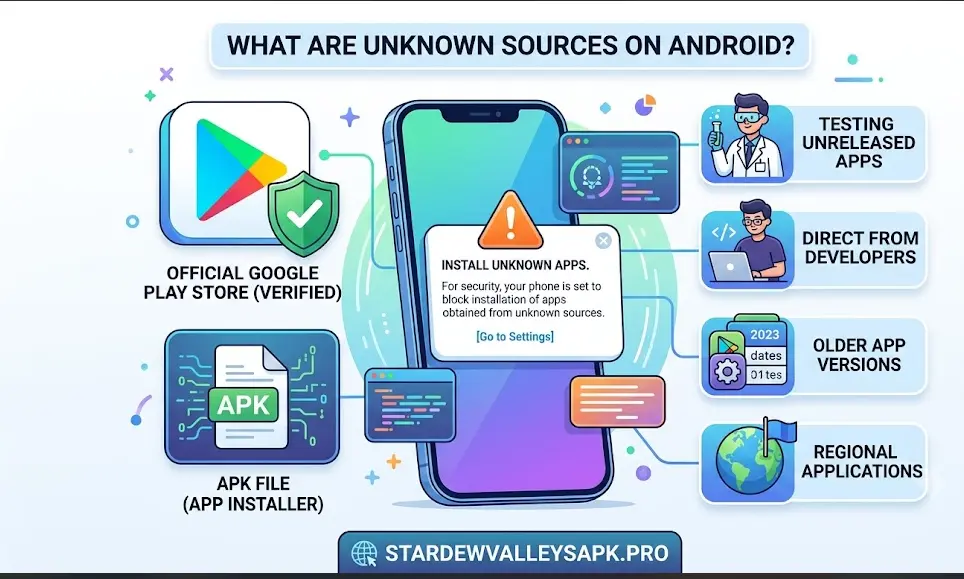
How Android Handles External App Installations
Earlier Android versions included a single setting called Unknown Sources, which allowed users to enable or disable external APK installations completely.
Modern Android versions provide a more controlled approach through the Install Unknown Apps permission. Instead of allowing every source to install applications, Android lets users choose which specific app can install APK files.
For example:
- A web browser may need permission if you download an APK through it.
- A file manager may need permission if you open an APK file stored on your device.
- A messaging application may need permission if an APK file is received through it.
This approach gives users more control and reduces unnecessary access.
The purpose is not to prevent users from installing APK files completely. Instead, Android adds an extra security step so users understand when an application is coming from outside the standard app distribution system.
Why Does Android Block Unknown Sources by Default?
Android blocks unknown sources by default mainly because applications installed from outside official stores may not have gone through the same verification process.
This security feature helps address several concerns related to application installation and device protection.
Protecting Users From Harmful Applications
The internet contains many different sources offering Android applications. While many APK files are legitimate, some files may be modified, outdated, or distributed without proper verification.
A modified application could potentially include unwanted code, excessive advertisements, or requests for unnecessary permissions.
By blocking unknown installations by default, Android creates a barrier that requires users to make an intentional choice before installing external applications.
Reducing Accidental Installations
Many security issues happen when users install applications without checking where they came from or what permissions they request.
For example, a user may click a misleading download button and install an application they did not intend to download.
The unknown sources restriction gives users an additional moment to review the situation before installation.
Giving Users More Control
Android is designed to balance flexibility and security. Unlike some closed operating systems, Android allows manual application installation, but it also provides settings that help users manage this process.
The unknown sources permission acts as a control point between convenience and security.
Users who understand APK files can enable the required permission when necessary and manage it afterward.
Are APK Files Automatically Unsafe?
No. An APK file itself is not automatically unsafe.
APK is simply a file format used to install Android applications. The safety of an APK depends on several factors, including:
- Where the file was downloaded from
- Whether the application has been modified
- What permissions the app requests
- Whether the developer or publisher is trustworthy
- Whether the file matches the expected version
For example, an APK provided directly by a recognized developer may be completely legitimate. On the other hand, an APK from an unknown website with suspicious modifications may create security concerns.
This is why Android encourages users to verify applications before installation instead of blocking all external installations permanently.
How Google Play Protect Helps Android Users Stay Safe
Google Play Protect is one of the security systems built into Android devices to help identify potentially harmful applications. It works by checking applications installed through the Google Play Store and can also scan applications installed from external sources.
While Play Protect provides an additional layer of protection, it does not replace careful decision-making. Users should still pay attention to where they download APK files from, what permissions an application requests, and whether the app comes from a trusted publisher.
When installing an APK outside the Google Play Store, Android may show security warnings because the application has not been distributed through the standard app marketplace. These warnings are designed to inform users and encourage them to verify the source before continuing.
What Does Google Play Protect Check?
Google Play Protect can help detect applications that may create security concerns by analyzing app behavior and comparing information against known security signals.
Some of the checks may include:
- Scanning installed applications for suspicious behavior
- Identifying potentially harmful applications
- Reviewing applications available through Google Play
- Providing warnings about apps that may affect device security
Keeping Play Protect enabled is recommended because it works alongside Android’s built-in security features.
Why Does Android Show “Install Unknown Apps” Warning?
When Android displays an “Install Unknown Apps” warning, it means the application you are trying to install is coming from a source other than the Google Play Store.
This message appears because Android cannot verify the application through the same process used for apps downloaded from official marketplaces.
The warning does not automatically mean the application is unsafe. It simply informs you that you are installing software from an external source and asks for your permission.
Before allowing installation, users should consider:
- Where the APK file was downloaded from
- Whether the website or developer is trustworthy
- Whether the application permissions make sense
- Whether the APK version matches the expected application
How Android Unknown Sources Settings Changed Over Time
The way Android manages external app installations has changed significantly over different versions of the operating system.
Older Android versions included a general Unknown Sources option. When enabled, this setting allowed applications from any external source to be installed.
Newer Android versions introduced a more advanced permission system called Install Unknown Apps. Instead of giving all applications installation access, Android now allows users to select specific apps that can install APK files.
This change improved security because users can allow APK installation only from the application they trust.
Android 8 and Later Versions
Starting with Android 8.0, the traditional unknown sources option was replaced with individual app permissions.
For example, if you download an APK through Chrome, you may need to allow Chrome to install unknown apps. If you use another browser or file manager, that application may require separate permission.
Android 13, Android 14, and Android 15 Security Changes
Recent Android versions continue to improve application security by adding stronger permission controls and privacy features.
Users may notice that installation settings are located differently depending on the device manufacturer and Android version.
Although menus may look different, the purpose remains the same: allowing users to control which applications can install external APK files.
How to Enable Install Unknown Apps on Android Safely
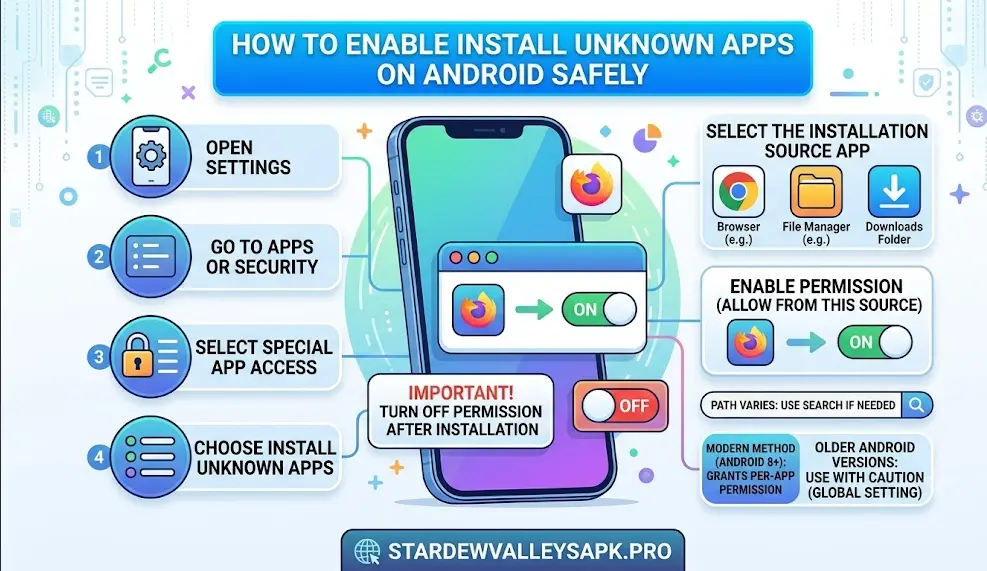
If you need to install an APK file, Android allows you to enable installation permission for a specific application. The exact steps may vary depending on your device model and Android version.
General Android Method
- Open your device Settings.
- Go to Apps or Security Settings.
- Select Special App Access.
- Choose Install Unknown Apps.
- Select the application you will use for installation.
- Enable the permission option.
After installing the required application, you can return to the same settings and remove the permission if you no longer need it.
How to Allow APK Installation on Samsung Galaxy Devices
Samsung devices use the One UI interface, so the location of the setting may be slightly different from standard Android.
Follow these general steps:
- Open Settings.
- Select Security and Privacy.
- Open More Security Settings.
- Select Install Unknown Apps.
- Choose the browser or file manager you are using.
- Allow installation permission.
Samsung users should keep security features such as device protection and app scanning enabled for better protection.
How to Enable APK Installation on Xiaomi and Redmi Devices
Xiaomi and Redmi phones may display these settings through MIUI or HyperOS interfaces.
The general process includes:
- Open device settings.
- Go to Privacy Protection or Apps.
- Select special permissions.
- Open Install Unknown Apps.
- Select the application source.
- Enable the required permission.
The exact menu name can vary depending on your phone model and operating system version.
How to Enable APK Installation on Google Pixel and Stock Android
Google Pixel devices usually provide a clean Android experience with fewer manufacturer changes.
- Open Settings.
- Go to Apps.
- Select Special App Access.
- Choose Install Unknown Apps.
- Select your browser or file manager.
- Enable permission.
After completing installation, reviewing and disabling unnecessary permissions is a good security practice.
Should You Disable Unknown Sources After Installing an APK?
After installing an APK file, many users choose to disable the installation permission again. This helps maintain better control over which applications can install files on the device.
You do not need to keep the permission enabled permanently. Android allows you to turn it on when required and remove it afterward.
A simple security habit is:
- Enable installation permission only when needed
- Install the required application
- Review app permissions
- Disable external installation access afterward
This approach provides convenience while maintaining better control over your device settings.
Best Practices for Safe APK Installation
Installing applications through APK files gives Android users more flexibility, but it also requires careful attention before completing the installation. Since external applications do not always come from official app stores, users should follow basic security practices to make better installation decisions.
A safe APK installation process is not only about enabling a permission. It also involves checking the application source, reviewing requested permissions, and understanding what you are installing on your device.
Download APK Files From Trusted Sources
The source of an APK file is one of the most important factors to consider before installation. Applications from unknown or unreliable websites may contain modified files or incorrect versions.
Before downloading an APK, check:
- The website or publisher providing the file
- The application name and developer information
- The version number and update details
- Whether the file matches the expected application
Trusted sources usually provide clear information about the application instead of only offering a download button without details.
Review App Permissions Before Installation
Android applications request permissions to access certain device features. These permissions should match the purpose of the application.
For example:
- A camera application may need camera access.
- A navigation app may need location access.
- A messaging application may need notification permissions.
If an application requests access that does not relate to its main function, it is worth reviewing before continuing.
Check APK Information Before Installing
Before opening an APK file, compare important details such as:
- Application name
- Version number
- File size
- Developer information
- Required Android version
Unexpected differences may indicate that the file is not the version you intended to install.
Keep Android and Security Features Updated
Keeping your Android operating system updated helps ensure that your device receives the latest security improvements and compatibility updates.
Users should also keep built-in security features active because they provide additional protection when installing and using applications.
Common APK Installation Problems and How to Fix Them
Sometimes an APK file may not install correctly even when the file appears normal. Installation issues can happen because of device settings, compatibility problems, storage limitations, or incorrect files.
Below are some common problems Android users experience and possible solutions.
Android Says “App Not Installed”
The “App Not Installed” message is one of the most common issues when installing APK files.
Possible reasons include:
- The APK file is incomplete or damaged
- The application is not compatible with your Android version
- A previous version of the same application already exists
- Your device does not have enough storage space
Possible solutions:
- Download the APK file again from a trusted source
- Remove an older version if necessary
- Check Android compatibility requirements
- Free up storage space before installation
APK Parsing Error
A parsing error usually appears when Android cannot properly read the APK file.
This can happen because:
- The APK download was interrupted
- The file is corrupted
- The APK requires a newer Android version
- The file format is not supported by your device
To fix this issue, try downloading the file again and confirm that it is compatible with your device.
Installation Permission Is Disabled
If Android blocks the installation process, the required permission may not be enabled.
To solve this:
- Open device settings.
- Go to app permissions.
- Select the application used for installation.
- Enable the Install Unknown Apps permission.
Only enable this permission for applications you trust.
Insufficient Storage Space
Even small APK files require additional space during installation because Android needs room to extract and set up application files.
If installation fails because of storage limitations:
- Remove unused applications
- Clear unnecessary files
- Check available storage before installation
APK Installation vs Google Play Store: Understanding the Difference
Both APK installation and Google Play Store downloads allow users to install Android applications, but the process and security checks are different.
| Feature | APK Installation | Google Play Store |
|---|---|---|
| Source | External file from a website or device | Official Google application marketplace |
| Installation Process | Manual installation required | Automatic installation through the store |
| Updates | Usually require manual updates | Updates are managed through Google Play |
| Security Checks | Depends on the source and verification | Uses Google’s application review systems |
| User Control | More flexibility over installation sources | More controlled distribution process |
APK files are useful in situations where an application is unavailable through official channels or when users need a specific version. However, users should understand the differences and take appropriate precautions.
Can Unknown Sources Harm Your Phone?
Enabling unknown sources does not automatically damage your phone. The permission itself only allows a selected application to install APK files.
The main consideration is what application you choose to install and where the APK file comes from.
Potential concerns may include:
- Installing applications from unreliable sources
- Giving unnecessary permissions to apps
- Using outdated application versions
- Installing modified files without verification
By following basic security practices, users can make more informed decisions when installing applications manually.
How to Check an APK Before Installing
Before installing an APK file, users can perform a few simple checks to better understand the application.
- Confirm the application name and developer
- Compare the version information
- Review requested permissions
- Check whether the file source is reliable
- Avoid files shared through suspicious links
Taking a few moments before installation can help prevent unnecessary problems later.
Understanding Different Android App File Formats
Most Android users are familiar with APK files, but there are other application formats that are also used for distributing Android apps. Understanding these formats can help users choose the correct installation method and avoid confusion during setup.
What Is an APK File?
An APK (Android Package Kit) is the standard file format used by Android to install applications. It contains the necessary files and information required for an app to run on an Android device.
When you install an APK file, Android extracts the application package and adds it to your device, allowing you to use the app like any other installed application.
APK files are commonly used when:
- An application is not available in your region
- A developer provides the app directly
- A user needs a specific application version
- An app is distributed outside traditional app stores
What Is an XAPK File?
An XAPK file is a package format that may contain an APK file along with additional data files required by some applications.
Large applications, especially games with additional resources, may use extra files because the complete application cannot fit into a single APK package.
Installing an XAPK file usually requires a compatible installer because Android does not always recognize this format by default.
What Is an APKM File?
APKM is another application package format commonly associated with split APK installations. Instead of storing all application components in one file, it separates different parts of the app.
This approach can help reduce download sizes because only the required components for a specific device are installed.
Users should always understand the file format before installation because different formats may require different installation methods.
Why Are Some Apps Not Available on Google Play Store?
Many users wonder why certain applications cannot be found through the Google Play Store and require manual installation through APK files.
There can be several reasons why an application is unavailable.
Regional Availability Differences
Some applications are released only in selected countries or regions. Developers may limit availability because of business decisions, testing phases, or local requirements.
Developer Distribution Choices
Some developers choose to distribute applications directly instead of using traditional app stores. This may happen with beta versions, testing applications, or software designed for specific users.
Application Compatibility Requirements
Some apps may not appear for certain devices because they do not meet specific hardware or software requirements.
Google Play Store automatically filters applications based on device compatibility, while manual APK installation requires users to check compatibility themselves.
Common Mistakes Users Make When Installing APK Files
Many APK installation problems happen because users skip basic checks before installing an application.
Some common mistakes include:
Downloading From Unverified Sources
Users sometimes choose the first download result they find without checking the source. This can lead to downloading incorrect versions or files that do not match the intended application.
Ignoring Application Permissions
Another common mistake is accepting all permissions without reviewing them.
Users should understand why an application requires certain access and whether those permissions match the app’s purpose.
Installing Incompatible Versions
Not every APK works on every Android device. Differences in Android versions, processor architecture, and device requirements can affect compatibility.
Before installation, check:
- Required Android version
- Available storage space
- Device compatibility
- Application version
How to Install APK Files More Responsibly
Installing APK files can be useful when done carefully. A responsible installation process focuses on understanding the application, checking the source, and maintaining control over device permissions.
A simple approach includes:
- Understand what application you are installing.
- Download the file from a reliable source.
- Review application details before installation.
- Enable installation permission only when required.
- Disable unnecessary installation permissions afterward.
- Keep your Android device updated.
These steps help users maintain a balance between flexibility and security.
Explore More Android Game Guides
If you are exploring Android games and want to understand how different APK-based gaming platforms work, our detailed game guides cover installation steps, features, account setup, and important information before getting started.
You can explore these guides:
- Y999 Game Guide: Learn more about Y999 Game, including its features, installation process, and beginner information.Read the complete Guide for Y999 Game
- M999 Game Guide: Explore the M999 Game overview, download information, setup steps, and platform features. M999 Game
- 357PK Game Guide: Find detailed information about 357PK Game, including installation instructions and important user tips. 357PK Game guide
Before installing any Android application, it is always recommended to understand the installation process, review app permissions, and use trusted sources. Our guides are created to help users make informed decisions while exploring Android apps and games.
Frequently Asked Questions
Why does Android block unknown sources?
Android blocks unknown sources because applications installed outside official app stores may not go through the same verification process. The restriction helps users control which applications can be installed on their devices.
What does Install Unknown Apps mean on Android?
Install Unknown Apps is an Android permission that allows a specific application, such as a browser or file manager, to install APK files from outside the Google Play Store.
Is enabling unknown sources safe?
Enabling this permission is not automatically unsafe. The important factors are the source of the APK file, application permissions, and whether the application comes from a trustworthy publisher.
Why can’t I install APK files on my Android phone?
APK installation problems can happen because of disabled permissions, incompatible Android versions, insufficient storage, corrupted files, or incorrect application packages.
Can APK files contain harmful software?
APK files are only a file format and are not automatically harmful. However, files from unreliable sources may contain unwanted modifications, so users should verify applications before installation.
Should I turn off Install Unknown Apps after installing an APK?
Many users choose to disable the permission after installation because it gives them more control over future installations. Android allows users to enable or disable this setting whenever needed.
Is APK installation different from Google Play Store installation?
Yes. Google Play Store installations happen through Google’s official marketplace, while APK installations are completed manually using an external application file.
Does Android block all APK installations?
No. Android allows APK installations, but it requires users to provide permission before installing applications from external sources.
Can I install APK files on Android 13, Android 14, and Android 15?
Yes, modern Android versions support APK installation. However, the permission settings and installation process may vary depending on the device manufacturer and Android version.
Final Thoughts
Android blocks unknown sources as a security measure that helps users stay aware of applications being installed from outside official app stores. This restriction does not mean every APK file is unsafe; instead, it encourages users to verify applications before giving installation permission.
Understanding how APK files work, how Android permissions operate, and how to check applications before installation can help users make better decisions when managing their devices.
Whether you are installing a testing application, accessing software unavailable in your region, or using an APK provided directly by a developer, the safest approach is always the same: use trusted sources, review permissions, and keep your device security features active.
By following these practices, Android users can enjoy the flexibility of APK installation while maintaining better control over their device security.